Personal Notes on a Work Laptop | Keep Them Off the Company Network
What your employer can see when you write personal notes at work, what a local-first app changes, and the part no app can protect you from.
Eight hours a day on a company laptop, and the line goes soft. A side project idea arrives during a dull call. A plan for the holiday. A journal entry you would rather nobody read. It all ends up on a screen that belongs to someone else, and the question is what happens to it afterwards.
What a work setup can actually see
The network. Traffic usually runs through the company's own gateway. Web tools like Notion, Trello or Google Docs are requests going out through it, and requests get logged: which service, when, how often, and sometimes what.
The shared workspace. A private page inside the company Notion, Confluence or Asana is private from colleagues, not from administrators. Workspace admins can read what is in the workspace, whatever the folder permissions say, and an export of everything is two clicks for them.
Sync, in the background. Signing into your own Evernote or Apple Notes account on a work machine keeps a local cache and a steady stream of sync traffic. Both leave a trail even when you have closed the app.
What local-first changes
A local-first app keeps notes, tasks and settings on the disk in front of you rather than on a server. On a work machine that changes three things.
There is no traffic to log. An app that does not need the internet does not send anything through the gateway. Nothing is intercepted because nothing is sent.
There is no workspace admin. No account, no shared space, nobody with a key above yours.
It leaves with you. Markdown files copy to a USB drive and open anywhere. When the laptop goes back, the notes do not go with it.
The part no app fixes
A work computer is not yours, and it is worth saying so plainly. If the company installs monitoring on the machine itself, it can read files on disk, take screenshots or log keystrokes, and a local app is as visible to that as anything else. Local-first removes the network trail and the third party; it does not turn someone else's laptop into your private device.
The honest boundary: keep anything you would genuinely not want seen on hardware you own. Everything else, the side project, the reading list, the plan for Saturday, is the case local-first handles well.
A quiet setup that works
Markdown for capture. An idea in the middle of a call needs a keystroke, not a menu. Type it, format it with a dash and two asterisks, move on.
A board for the side project. Learn a language, plan an anniversary, run a freelance job. Cards move without anyone being notified, because there is nobody to notify.
Reminders that stay on the machine. A cloud app can throw a push notification onto the screen in the middle of a shared window. A local reminder does not travel, and it does not announce itself to a meeting room.
Where TaskNote fits
Ours, so read it as such. The Windows app runs with no account at all: notes, boards and reminders live in a folder on your disk, nothing is sent anywhere, and there is no sign-up to explain. A global hotkey opens a new note over whatever you are doing, and the line you write becomes a card on the board when it turns out to be a task.
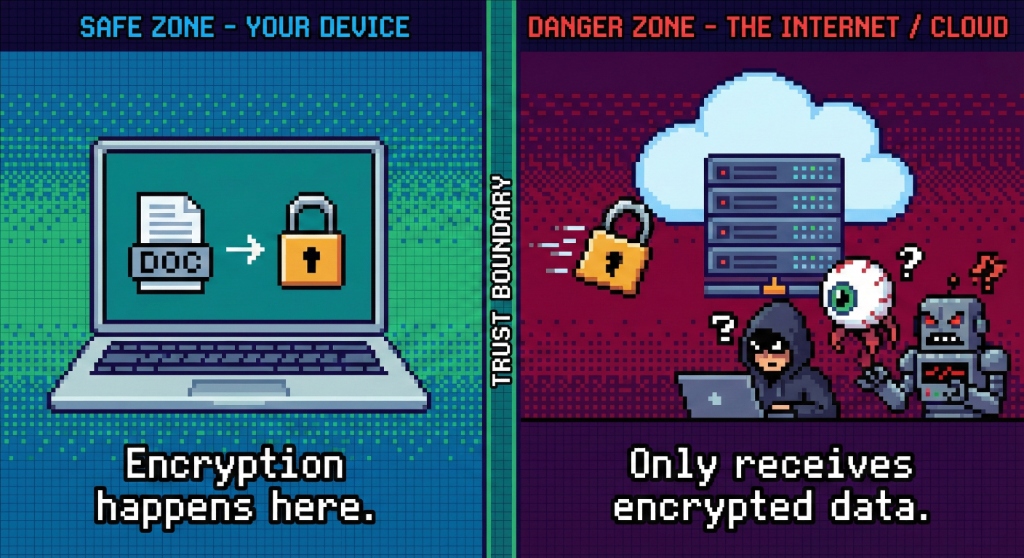
One thing we will not claim: the desktop database is a plain file, not an encrypted vault, so it protects you from the network and from a shared workspace, not from someone with access to the machine. If you want encryption, that is the web app, where notes are encrypted on your device before they reach us and the key stays with you. Choosing between the two is a question of which risk you actually have, and the honest answer is usually the first one.
The phone is the other half of the problem
Most of this article is about the laptop, and for a lot of people the leak is not there. It is the personal phone with the work account signed into it.
What that account can usually do. Mobile device management is the normal arrangement, and it typically comes with the right to enforce a passcode, to require encryption, and, on the day you leave or the day the phone goes missing, to wipe it. Some configurations wipe only the work container; plenty of older ones wipe the device. Which one you have is a question with an answer, and worth asking before you need it.
What it usually cannot do. Read your personal messages, look at your photos, or see what you type in an unrelated app. The fear tends to be broader than the reality, and the specifics vary by how the policy was configured.
The practical split. Keep the work account on a work profile if the phone supports one, and nothing personal inside it. Do not put the personal notes app in the same account as work mail. If the company offers a work phone, the simplest answer is to carry both and never mix them.
Before you hand anything back. Sign the work account out of every personal device, including the tablet nobody uses and the old phone in the drawer. Devices go on syncing until somebody notices, and the somebody is usually an administrator reading a report.
What to do on your last day, and the week before it
The moment this stops being theory is the day you resign, and by then the useful actions take five minutes each.
Export before you announce. Not because anyone is dishonest, but because access is usually cut the same day, sometimes the same hour, and the export button lives behind the account.
Separate what is yours. Reference notes you wrote for yourself, a snippet library, a list of contacts you knew before the job: these are yours to take in any reasonable reading. Customer data, internal documents and anything under a confidentiality clause are not, and taking them is the way a clean exit becomes a legal one.
Leave the company's copy tidy. Handover notes in the company's own system, where the next person will look. That is the version that should be complete.
Check what syncs. A personal phone signed into a work account will go on syncing until someone notices. Sign out before your last day rather than discovering later that you still hold company mail.
The short version
Personal thinking on a work laptop is normal. Doing it inside the company's tools is what makes it visible. A local-first app gives you a quiet corner on that desktop: no account, no sync, no trail through the gateway, with the limits of the machine itself stated out loud.
Questions
- Can my employer see my personal notes on a work laptop
- If the notes live in a company account, assume yes: administrators can usually read, export and retain them. If they live in a personal app on a machine the company manages, monitoring software can still see the screen and the disk. The safest split is a personal device for personal things.
- Is it safe to keep personal notes in a work Google or Microsoft account
- No, in the sense that matters: the account belongs to the company. It can be suspended on your last day, its contents can be exported by an administrator, and anything in it may be produced in a legal dispute.
- What happens to my notes when I leave the job
- Company accounts are usually closed the same day, often without warning, and what was inside goes with them. Anything you would want to keep has to be somewhere the company cannot switch off.
- Does a local app on the work laptop solve it
- Partly. It removes the company account and the network trail, which is a real gain. It does not defeat monitoring software installed on the machine itself, and the file on disk is readable by anyone with administrator rights on that computer.
- What is the practical rule
- Personal writing on a personal device. If it has to be on the work machine, keep it out of company accounts, keep it short, and keep nothing you would mind an administrator reading.
privacylocal-firstwork